
How to build the Breadboard MIDI to CV project
This article contains full instructions and diagrams to build the breadboard MIDI to CV project.
This is one of the simplest breadboard MIDI to CV projects there is with just a handful of components and no setting up to do.
However in my opinion the hardest part of this project is programming the microcontroller. I come from a hardware background so you might find that part the easiest.
Breadboard MIDI to CV DIY
If you are looking for a MIDI to CV DIY project you won’t find one much simpler.
There are plenty of other designs and some really good ones that offer multiple channels and control voltage outputs for other modulation sources but sometimes you just need a simple one-channel device to convert the pitch. If that’s the case then this is absolutely the DIY project for you.
I’ve used this to provide the control voltage for my “Breadboard synthesizer project”.
Cheapest MIDI to CV converter?
This device also has to be the cheapest MIDI to CV converter that you can build. I’ve not added up the components but I bet they cost less than £10.
How does a MIDI to CV converter work?
The MIDI or musical instrument digital interface is a serial interface. It takes note and controller information and sends them down a wire as a series of digital highs and lows.
A control voltage input to an analogue voltage-controlled oscillator tells the oscillator what pitch to oscillate at and therefore the note to play. The Gate input tells an envelope generator when a note is pressed and released.
Note-on and note-off commands are sent out of a MIDI interface as well as the ATtiny85 gets the serial MIDI commands and converts these for you with a bit of clever programming.
The MIDI specifications call for devices to be optically isolated from each other so ground loops don’t occur.
To do this they use an opto isolator to convert the digital signals by using an LED that lights and a device like a phototransistor, So the “high” part of the signal lights the LED and activates the phototransistor and the low doesn’t. This circuit uses the 6N137 to send this isolated signal to the ATtiny85 microcontroller.
Background to the breadboard MIDI to CV project
The real work of designing the hardware and software was done by Jan Ostman however he doesn’t support the project any more as it seems he has retired and isn’t responding to messages either and it looks like his site has gone as well.
It seems a shame to let all of his good work go to waste in what is an excellent MIDI to CV project so I’ve laid it out to make a breadboard project so people can still make it.


Components required
Resistors 2 x 1K, 2 x 220R and 4K7.
Diode 1N4148.
Capacitors 2 x 100nF.
Optocoupler 6N137.
Microcontroller ATtiny85.
PCB mounted 5-pin DIN socket.
Breadboard and wires.
Programming the ATtiny85
To program the ATtiny85 you will need a USBasp if you want to follow my instructions. The ATtiny85 and most microcontrollers can also be programmed with an Arduino Uno however as the USBasp is so cheap (As low as £7 on Amazon) I decided that was the route I was going to go down.
Once you have a USBasp you can program the ATtiny85 by plugging it into the breadboard and connecting six leads from the USBasp to the breadboard. You will also need to install some free software, Arduino IDE.
I have included a link for it below:
https://www.arduino.cc/en/software
This is available for Windows and Linux and if you are a beginner you might want to read my article:
Programming an ATtiny85 with a USBasp
Firstly, this gives you full and detailed instructions of how to install Arduino IDE for Windows, along with the driver problems, and Linux, along with the permissions.
Secondly, it will teach you how to program a simple ATtiny85 project. This is something you might want to familiarise yourself with to start. You can always erase the ATtiny85 afterwards and then program it for this project.
Construction of the breadboard MIDI to CV project
If you are a beginner at building breadboard projects you may want to check out my article “Breadboard Tips” to give you some helpful hints. Even if you have a lot of experience you may still learn something new.
As with most breadboard construction start with the small components first as you’ll find it difficult to put them in after the larger ones are in place. Especially if you have large fingers. First start by making the tinned copper wire links and inserting them into the breadboard.
1. Link 3j to red.
2. Link 6j to blue.
3. Link 11j to red.
4. Link 15j to blue.
5. Link 14a to blue.
6. Make sure to link the two blue lines together. I usually do this at the bottom of the breadboard. Don’t link the two red columns though!

You should have something similar to the picture above with six wire links.
Next, insert the passive components.
7. The 1N4148 diode, banded end to 4c other end to 5c.
8. A 220R resistor between 4d and 9d.
9. Another 220R resistor between 5i and red.
10. A 4K7 resistor between 4h and blue.
11. A 1K resistor between 13h and 17h.
12. Another 1K resistor between 12i and 18i.
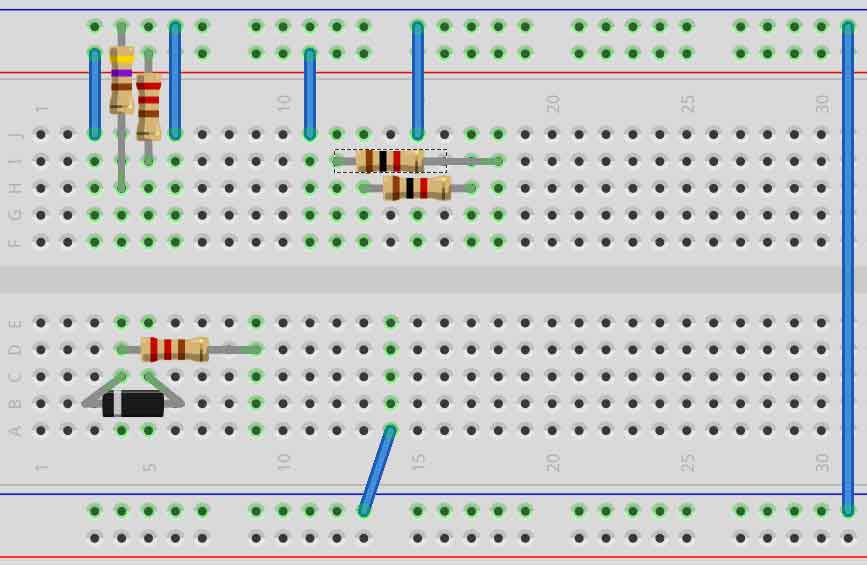
13. a 100nF capacitor between 15f and 17f.
14. another 100nF capacitor between 11g and 15g.

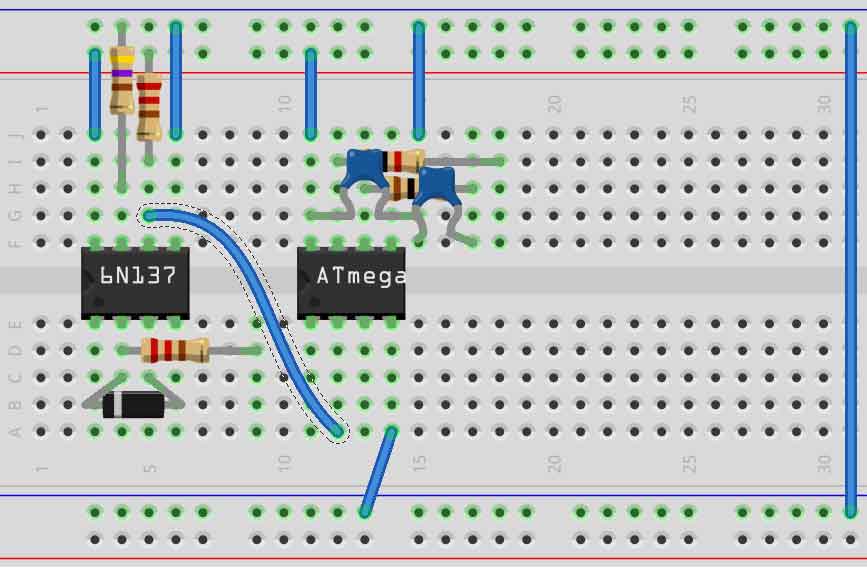
Last but not least, insert the DIL components.
15. Plug in the 6N137 opto isolator with pin 1 in 3e.
16. Plug in the pre-programmed ATtiny85 with pin 1 in 11e.
17. Use a wire to link 12a and 5g.
I use PCB mounting 5-pin din sockets for MIDI connections as they make building electronics projects easier as there is less wiring and so less chance of mistakes. They have five pins along the back and two pins that hold it in place for soldering. In this project cut those two off or bend them at an angle so they don’t plug into the breadboard.
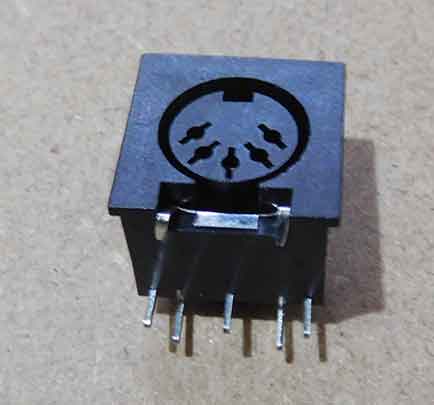
18. Plug the DIN socket for the MIDI in with the right pin in 4a.

Connections to the breadboard
Connect up the 5V power supply to the red column on the right and the blue.
In the picture, I’ve used an orange lead for the control voltage CV out and a green lead for the gate out signal.
The MIDI to CV software
This is the original software for the project. As you can see it is free software distributed in the hope that it will be useful. It certainly is so thanks Jan, also Kevin has altered it and it is available on his website for which I have included a link:
I’ve programmed Kevin’s version and it works well. You will also need to set the internal fuses to make the ATtiny85 run at “internal 8MHZ” which you can do from the “tools” menu in the Arduino IDE software.
Jan Ostman original software
// (*) All in the spirit of open-source and open-hardware
// Janost 2019 Sweden
// The goMIDI2CV interface
// http://blog.dspsynth.eu/diy-good-ol-midi-to-cv/
// Copyright 2019 DSP Synthesizers Sweden.
//
// Author: Jan Ostman
//
// This program is free software: you can redistribute it and/or modify
//it under the terms of the GNU General Public License as published by
// the Free Software Foundation, either version 3 of the License, or
// (at your option) any later version.
// This program is distributed in the hope that it will be useful,
// but WITHOUT ANY WARRANTY; without even the implied warranty of
// MERCHANTABILITY or FITNESS FOR A PARTICULAR PURPOSE. See the
// GNU General Public License for more details.

//Set Fuses to E1 DD FE for PLLCLK 16MHz

#include <avr/interrupt.h>
#include <avr/io.h>
#include <avr/pgmspace.h>

#ifndef cbi
#define cbi(sfr, bit) (_SFR_BYTE(sfr) &= ~_BV(bit))
#endif
#ifndef sbi
#define sbi(sfr, bit) (_SFR_BYTE(sfr) |= _BV(bit))
#endif

volatile uint8_t MIDISTATE=0;
volatile uint8_t MIDIRUNNINGSTATUS=0;
volatile uint8_t MIDINOTE;
volatile uint8_t MIDIVEL;

void setup() {
 // Enable 64 MHz PLL and use as source for Timer1
 PLLCSR = 1<<PCKE | 1<<PLLE;
 // Set up Timer/Counter1 for PWM output
 TIMSK = 0; // Timer interrupts OFF
 TCCR1 = 1<<PWM1A | 2<<COM1A0 | 1<<CS10; // PWM A, clear on match, 1:1 prescale
 // Setup GPIO
 pinMode(1, OUTPUT); // Enable PWM output pin
 pinMode(0, INPUT); // Enable USI input pin
 pinMode(2, OUTPUT); // Enable Gate output pin
 pinMode(4,OUTPUT); // Enable Pitchbend PWM output pin
 //Setup the USI
 USICR = 0; // Disable USI.
 GIFR = 1<<PCIF; // Clear pin change interrupt flag.
 GIMSK |= 1<<PCIE; // Enable pin change interrupts
 PCMSK |= 1<<PCINT0; // Enable pin change on pin 0
 GTCCR = 0;
 OCR1C = 239; //Set count to semi tones
 OCR1A = 0; //Set initial Pitch to C2
 digitalWrite(2,LOW); //Set initial Gate to LOW;
 pinMode(2, OUTPUT); // Enable PB4 output pin for pitchbend CV
 GTCCR = 1<<PWM1B | 2<<COM1B0; // PWM B, clear on match
}

ISR (PCINT0_vect) {
 if (!(PINB & 1<<PINB0)) { // Ignore if DI is high
 GIMSK &= ~(1<<PCIE); // Disable pin change interrupts
 TCCR0A = 2<<WGM00; // CTC mode
 TCCR0B = 0<<WGM02 | 2<<CS00; // Set prescaler to /8
 TCNT0 = 0; // Count up from 0
 OCR0A = 31; // Delay (31+1)*8 cycles
 TIFR |= 1<<OCF0A; // Clear output compare flag
 TIMSK |= 1<<OCIE0A; // Enable output compare interrupt
 }
}

ISR (TIMER0_COMPA_vect) {
 TIMSK &= ~(1<<OCIE0A); // Disable COMPA interrupt
 TCNT0 = 0; // Count up from 0
 OCR0A = 63; // Shift every (63+1)*8 cycles 32uS
 // Enable USI OVF interrupt, and select Timer0 compare match as USI Clock source:
 USICR = 1<<USIOIE | 0<<USIWM0 | 1<<USICS0;
 USISR = 1<<USIOIF | 8; // Clear USI OVF flag, and set counter
}

ISR (USI_OVF_vect) {
 uint8_t MIDIRX;
 USICR = 0; // Disable USI
 MIDIRX = USIDR;
 GIFR = 1<<PCIF; // Clear pin change interrupt flag.
 GIMSK |= 1<<PCIE; // Enable pin change interrupts again

 //Wrong bit order so swap it
 MIDIRX = ((MIDIRX >> 1) & 0x55) | ((MIDIRX << 1) & 0xaa);
 MIDIRX = ((MIDIRX >> 2) & 0x33) | ((MIDIRX << 2) & 0xcc);
 MIDIRX = ((MIDIRX >> 4) & 0x0f) | ((MIDIRX << 4) & 0xf0);

 //Parse MIDI data
 if ((MIDIRX>0xBF)&&(MIDIRX<0xF8)) {
 MIDIRUNNINGSTATUS=0;
 MIDISTATE=0;
 return;
 }
 if (MIDIRX>0xF7) return;
 if (MIDIRX & 0x80) {
 MIDIRUNNINGSTATUS=MIDIRX;
 MIDISTATE=1;
 return;
 }
 if (MIDIRX < 0x80) {
 if (!MIDIRUNNINGSTATUS) return;
 if (MIDISTATE==1) {
 MIDINOTE=MIDIRX;
 MIDISTATE++;
 return;
 }
 if (MIDISTATE==2) {
 MIDIVEL=MIDIRX;
 MIDISTATE=1;
 if ((MIDIRUNNINGSTATUS==0x80)||(MIDIRUNNINGSTATUS==0x90)) {
 if (MIDINOTE<36) MIDINOTE=36; //If note is lower than C2 set it to C2
 MIDINOTE=MIDINOTE-36; //Subtract 36 to get into CV range
 if (MIDINOTE>60) MIDINOTE=60; //If note is higher than C7 set it to C7
 if (MIDIRUNNINGSTATUS == 0x90) { //If note on
 if (MIDIVEL>0) digitalWrite(2, HIGH); //Set Gate HIGH
 if (MIDIVEL==0) digitalWrite(2, LOW); //Set Gate HIGH
 OCR1A = MIDINOTE<<2; //Multiply note by 4 to set the voltage (1v/octave)
 }
 if (MIDIRUNNINGSTATUS == 0x80) { //If note off
 digitalWrite(2, LOW); //Set Gate LOW
 OCR1A = MIDINOTE<<2; //Multiply note by 4 to set the voltage (1v/octave)
 }
 if (MIDIRUNNINGSTATUS == 0xE0) { //If pitchbend data
 if (MIDIVEL<4) MIDIVEL=4; //Limit pitchbend to -60
 if (MIDIVEL>119) MIDIVEL=119; //Limit pitchbend to +60
 MIDIVEL-=4; //Center the pitchbend value
 OCR1B = (MIDIVEL<<1); //Output pitchbend CV
}
 }
 return;
 }
}

void loop() {

}
Final thoughts on the breadboard MIDI to CV project
I don’t think you can build a breadboard MIDI to CV project using any fewer components and as such it makes it a very easy project to build.
I can confirm that it works really well and although there is no setting up you can tweak the range pre set on your VCO to get it to track even better.
If you have any problems after you have built the circuit, like it not working, for instance, check out my article on “Common breadboard mistakes” to help you out.
Also check out my post, Breadboards – the complete guide, for everything you need to know about breadboards.


“Hi, I’m Graham Moore and I’ve been building electronic projects since I was 12. I had a fascination for old radios and taking them to pieces but when my Nan bought me an electric soldering iron, I realised with a few components I could build stuff.
Learning to solder opened up many doors for me as electronics also became a career. I hope you get as much from it as i did”.
Breadboard design software

Breadboard design software tested and compared If you use breadboards, you might find breadboard design software helps with your building. Breadboards are tremendously useful for beginners who can’t solder…
Best breadboard kit buyers guide

Best breadboard kit buyers guide In this “Best breadboard kit buyers guide”, I’ll attempt to point you in the direction of the kit that best suits you. Breadboard kits come…
Common breadboard mistakes

Common breadboard mistakes If your breadboard circuit doesn’t work don’t worry you are not the first and won’t be the last. Fortunately, there are a lot of common breadboard mistakes…
How are breadboards connected?

How are breadboards connected? Breadboards vary in type so how they are connected depends on the type of breadboard. Breadboards can be further divided into two main types and that’s…
Where to buy breadboards

Where to buy breadboards So if you’ve found this page that means you’ve probably decided you want to buy a solderless breadboard and you want to know where to buy…