
Build a FLAC music player
What you need to build a FLAC music file player
Raspberry Pi
Power supply
Micro SD card
Digital to analogue converter
Raspberry PI
There are various different versions of the Raspberry PI.
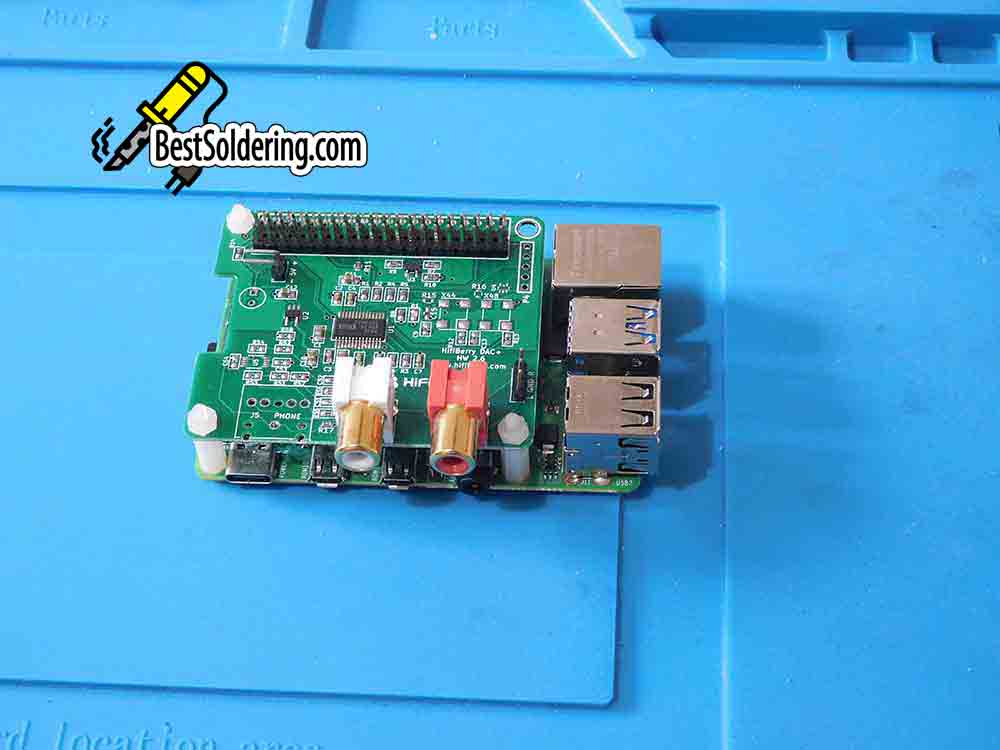
Undoubtedly, these have become more advanced through the years of development. You could try an older one if you’ve got one lying around. Personally, I decided to use a PI 4. The main reasons were that it has built-in wireless and USB 3 sockets. You are going to need some form of wireless or network connection to operate it remotely.
The power supply
Most Raspberry PI projects and instructions will tell you to use a proper Raspberry power supply. You can use a USB phone charged but I’ve got one of the PI 4 power supplies with a power switch.
This is useful because once you’ve powered down from the Volumio app on your smartphone, you’ll have to unplug the PI to restart it again. The switch saves wear and tear on the PI USB socket.
The micro SD card
First, I’ll tell you that the “Volumio” website tells you that the minimum is a 4 Gigabyte micro SD card, but they recommend 8 Gigabytes.
In my experience, most of the problems you will encounter with a Raspberry PI are down to the micro SD cards. There are a lot of substandard ones floating around the internet. The thing is they are so cheap you can get a decent 32 Gigabyte micro SD for under £10. You need to use class 10 ones, not class 2 as they aren’t fast enough.

A good quality card will save a lot of time in the long run.
The digital-to-analogue converter or DAC
There are plenty of choices when it comes to getting a DAC converter.
This is because the built-in one on the Raspberry isn’t good enough for good-quality audio. It would help if you looked into what is available and what quality you want.
I’m not going to go into that here as it could easily escalate into a whole guide on its own. I bought the HiFi Berry DAC+. This will give me the type of audio quality I want and there’s always the option to upgrade this device later.
Build the FLAC music file player
It always makes me laugh when people talk about building Raspberry Pi projects.
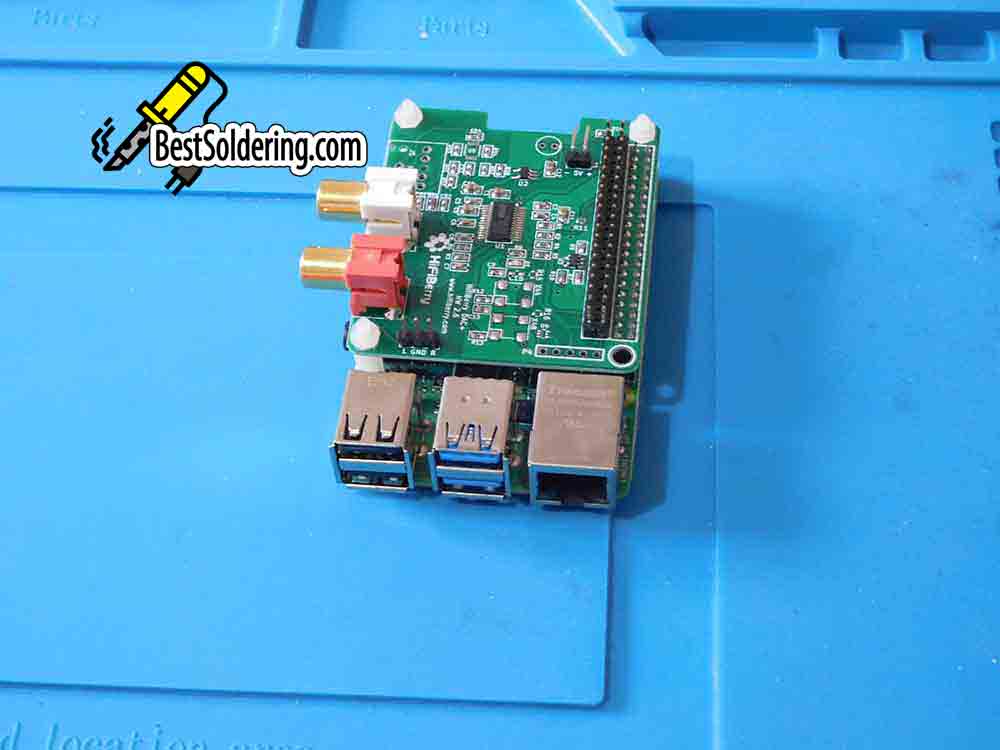
You basically plug a few bits together. The programming is the most taxing part and that’s not exactly rocket science. So to build this project you plug the DAC board into the PI. It fits on top and plugs in. That’s the building part done now to program it.
Programming the SD card
First, you need to format the card. If you are using Windows, download the “SD memory card formatter” from the SD association. It’s available for Windows or Mac.
I’m using a Linux machine and I’ve found the built-in “USB Stick Formatter” does the job. Just plug your micro SD card into the adapter, select the card and format.
The next stage is to actually program the micro SD card. There are various ways you can do this and various apps will do it. You may have a favourite that you use. If so feel free to use that. I’ve recently switched from using one of these and now use “Raspberry PI Imager”.
This is available for Windows, Macs and Linux. Using the “Raspberry PI Imager” is especially easy. You just select the SD card and select the OS. Just click on it and scroll down to “Media Player OS”, select “Volumio” and click on it. Select “Write” and “Yes” and type in your system password and just leave it to complete.
This took about 10 minutes for me and you’ll see it write and verify on the screen. Just patiently wait for it to finish.
Setting up Volumio
Plug the micro SD card into the PI and power it up. If you’ve attached a display to your PI you’ll see various messages.
You may see error messages if the installation hasn’t been successful. If you’ve followed my advice and used a good-quality card you should see a screen like the one shown below.
Picture
Using the Volumio app
Download the Volumio app to your smartphone. I tried to log on through my browser but this would connect until I’d done the initial setup from the phone.
Once you’ve installed the app just follow the on-screen instructions. It’s all pretty simple. Firstly it will find the Volumio device and connect it. Then it will turn off its “hotspot” and connect to your WiFi.
You can then configure the device as you want. Once I had done the initial setting I could log on with a laptop a browser @volumio.local/playback
The first thing you need to do is to select the DAC that you are using. For me, this was “HiFi Berry DAC+” from the menu. You need to restart the device to get the setting to take effect. You can do this restart from the phone app.
Once you’ve done that plug in a USB stick with some files on to try it out. Volumio will play most audio files. The one I’m most interested in is FLAC. Incidentally, you can play high-res audio files.
These are available from some websites and can be as good as 24-bit 192 kHz. The original CD specification was 16-bit 44.1 kHz. They are obviously much larger file sizes but that’s not really an issue these days.
I will endeavour to get hold of one of these files and compare the two. The HiFi Berry DAC+ is a 24-bit 192 kHz converter.
The Volumio Raspberry PI music file player in use
So in use, you can connect the device to your amplifier.
The HiFiberry has gold-platted RCA sockets which connect to your amplifier. I’m using the £60 cables that I previously used for the NAD C542 CD player. I’ve plugged a 1 terabyte USB 3 drive into the PI for the music files. Be aware that some drives won’t work with a PI. It’s a case of trial and error.
Most of the ones I’ve tied work. I’m currently in the process of transferring my CDs artist by artist, to the drive. So far I’ve been really happy with the results. Doing an A/B comparison I can’t hear any difference in sound quality between the NAD C542 playing the CD and the PI playing the FLAC version.
You can hear a difference between FLAC and MP3 though which goes to show the quality of the NAD amplifier and the speakers as I don’t think many people’s systems will be able to distinguish between FLAC and MP3.
Music file players
I initially wanted to buy a music file player but couldn’t find anything I liked at a reasonable price.
The most suitable for me was the CD/hard drive players. Unfortunately, these were priced at over £500. Reading a review of one said something along the lines of these machines were cashing in on people who were technologically behind.
It mentioned older people who weren’t aware that you could do everthing one of these machines did on a computer and it was just a unit that did it all in one.
This got me thinking.
Why I wanted a music file player in the first place
This was because I’d just got my old HiFi separates out of storage and my CD player, a NAD C542 wouldn’t play CDs without annoyingly skipping randomly.
I later found out this was the laser. I replaced the laser on my NAD C542 successfully and it only cost me a few pounds (about £10 to buy the laser). It’s also easy enough to change the whole laser mechanism which is a KSS213C.
It was while researching this project that I found you could stream FLAC files through a decent digital-to-analogue converter and get the sort of quality you could get from a high-end CD player.
Ultimately this was what I wanted. It was the sound quality first, anything else would be a bonus.
Using a PC or laptop
You could use a PC or laptop to stream FLAC files.
There are plenty of apps that will do the job however this does mean you’ve got to get a good sound interface. While a sound interface drastically improves the audio quality of your computer, you’ll still have fans running and other stuff going on in the background. I wasn’t convinced.
Buying one from Amazon
I’d also seen various devices for sale on Amazon.
These were handheld devices and were self-contained and could be operated with buttons and a screen. This ticked the box of being easy to use, not having to boot a PC up and being silent, however, it didn’t convince me for other reasons.
Most only had storage on SD cards. The outputs were on 3.5 mm sockets and who knows what digital-to-analogue converters were being used. They seemed more like successors to the Walkman rather than successors to the CD player and CD library.
The Raspberry PI
once again it came down to the Raspberry PI to provide the answer as it had with my network-attached storage (NAS) openmediavault project.
As you are probably aware the optical part of the CD player is there just to get the digital file to the digital-to-analogue converter. In the day CDs were introduced there wasn’t any other cost-effective way to provide digital storage on a manufacturable distributable medium.
Nowadays you can store all that digital data on a hard drive. You could store a whole CD collection on a decent-sized hard drive. A CD album was about 650 megabytes so 100 would only take up 65 Gigabytes.
The sound quality of a CD player is the analogue audio path once the digital data has been extracted. Basically, this is the quality of the digital-to-analogue converter and the audio path it takes from there to the amplifier.
This is a whole complex subject in itself and is the entire reason some CD players cost £100 and some cost well over £1,000. before getting too involved in HiFi debates here you can get digital to analogue converters for the Raspberry PI that can now exceed the ones in high-end CD players.
You can also easily attach whatever storage you want. You could even use a server based system or NAS drive
The software for the Raspberry PI
There are various choices you can make for the software to do the job. I’ve looked at various options and for me, the best one seems to be “Volumio”. This runs out of the box in “headless” mode.
This just means that you can operate it remotely so you don’t need a screen mouse or keyboard.
This is exactly what I’m looking for. A self-contained file player. At least CD quality, silent and with whatever storage I want.
Final thoughts: build a FLAC music player
I’m very happy with this DIY audio project as for a while I couldn’t find a device to buy that I was that happy with.
What I’ve got now is a totally silent device (even the CD player made some mechanical sound), excellent sound quality (which was the number one aim for me) remotely operated without a monitor screen, keyboard or mouse and I don’t have to hunt around or change CDs.
The project cost less than £100 to build although this is dependent on the DAC and PI you choose. Music streamers are all well and good but lots are only Mp3 quality at best.

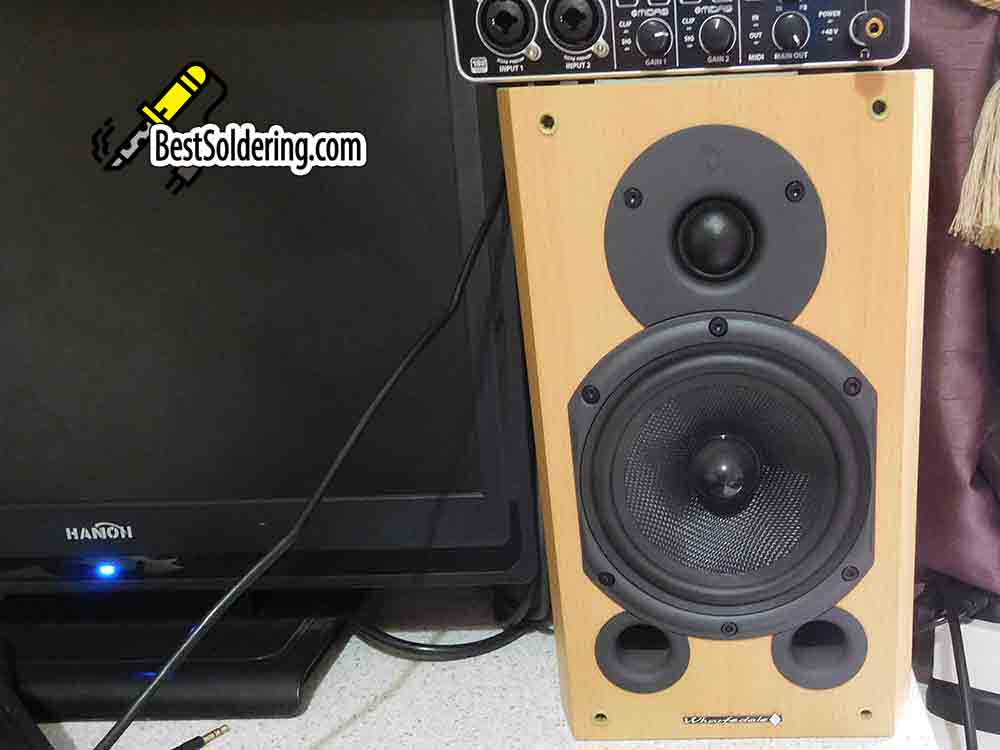
As an update, I’ve done a comparison test using my NAD C342 amplifier, NAD C542 CD player, Diamond 9.1 speakers and also a couple of different pairs of headphones. I used a CD (OMD – History of Modern) and the FLAC file.
I used the settings in Volumio to match the output level to the same as the CD. Then I manually synchronised (I got it within about a quarter of a second anyway) the same track on the file player and CD player. Then I listened and switched between the two sources.
The result, I couldn’t hear any difference between the CD player and the streamer with the speakers or either of the headphones. This was as I’d hoped. I’m keeping my CD player for reference and for future testing but I’m happy just to use the extra functionality of the streamer.


