
How to connect Kodi to a network drive
If you need to know how to connect Kodi to a network drive, it will depend on your particular network drive.
I’m going to show you how to connect to a network drive that I’ve built using a Raspberry Pi and OpenMediaVault. This should give you plenty of information that you can tweak for the exact needs of your network drive. If you want a network drive and don’t want to spend much money, I can recommend the Raspberry Pi.
I already had a spare lying around so it didn’t cost me anything. If you want to build one follow my how to build a Network Drive with a Raspberry PI and OpenMediaVault project.
If you are considering getting or building a network drive, read my guide to network drives and I’ll tell you how a network drive can help you.
Why use a Network drive
The reason I wanted to connect my Kodi to a network drive was that I was fed up with having to disconnect the hard drive that was connected to the Kodi every time I wanted to add files to it.
This was particularly exacerbated by my upgrading my audio-visual set-up. This meant that my video player that had Kodi on it was even more inaccessible. USB 3 drive plugs and sockets aren’t the easiest to unplug and reconnect either and I’m not sure how many times you can do it before you start to damage or wear the connects out.
They are not exactly robust. With a network drive, I would be able to transfer files from my laptop to the network drive without plunging or unplugging anything, and all wirelessly.
Disadvantages of a network drive
In a word speed. In a real-world test, and by that I mean ones I’ve actually done myself rather than rely on what the theoretical speeds are, transferring a 4-gigabyte video file over the network reached speeds of 8.3 MB/sec.
Doing the same transfer between two USB 3 hard drives, I can achieve speeds averaging around 60 MB/sec. So transfers of files over my network are a lot slower than USB 3. At least this can all be done in the background without drives having to be plugged in.
How to connect Kodi to a network drive – My setup
I’ve got a media streaming box with Kodi installed on it.
This is connected to the router with a wired connection. I also have my network drive connected to the router with a wired connection. If your devices are near enough to the router, wired connections are the best connection method. My laptop and other PCs connect to my network via Wi-Fi.
How to connect Kodi to a network drive – OpenMediaVault setup
Initially, I set up Kodi with OpenMediaVault by simply browsing for the Network Drive.
I was aware that the version of OpenMediaVault was outdated so I installed the latest version, which is currently 6. The new version of OpenMediaVault seems quite different in operation from the older one.
Despite playing around with the settings and configurations of OpenMediaVault I could no longer browse to the network drive from Kodi or my Linux Mint laptop. I could browse it from a Windows laptop though, which led me to believe that it had something to do with the NFS setup.
Windows uses SMB and this seemed unaffected. If you want more information about NFS and SMB check out my article on the PI OpenMediaVault network drive project.
Depending on your network drive you may be able to browse to it. If your Kodi doesn’t find it by this method don’t worry you can still connect to it.
Kodi set up

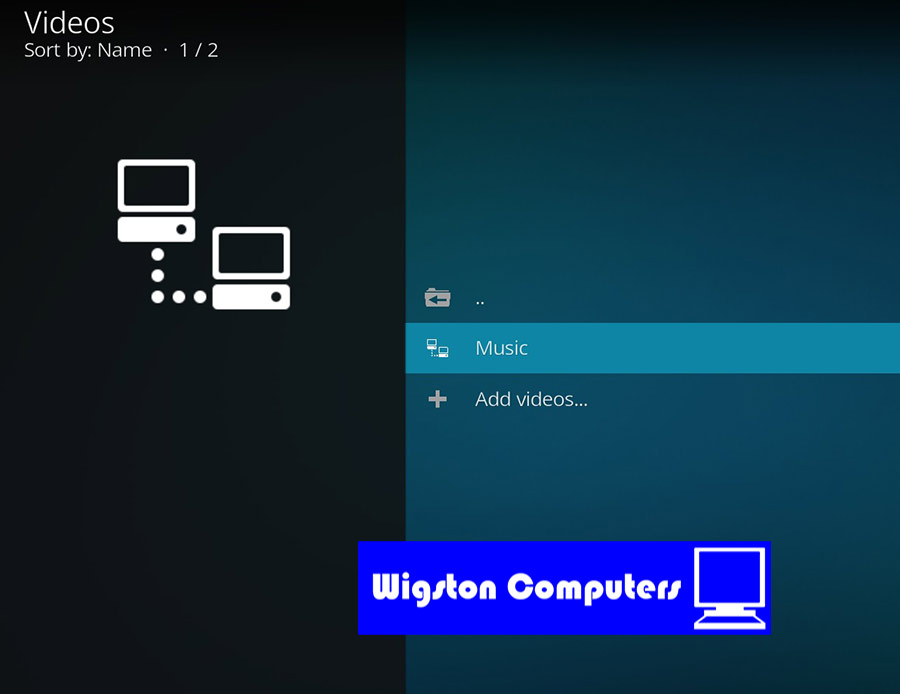
To add a network drive select “Enter Files Section” then click on “+ Add Videos.”
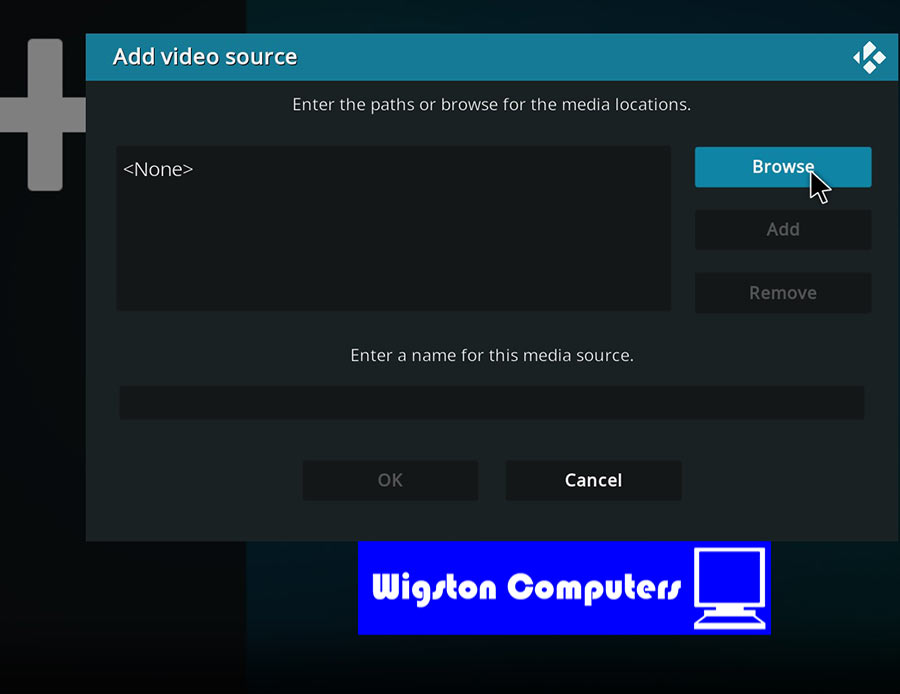
Then the blue “Browse” button.

Next scroll to the bottom and select “Add network location…” Select the “Protocol” to “Network File System (NFS) and put the “Server address” in.
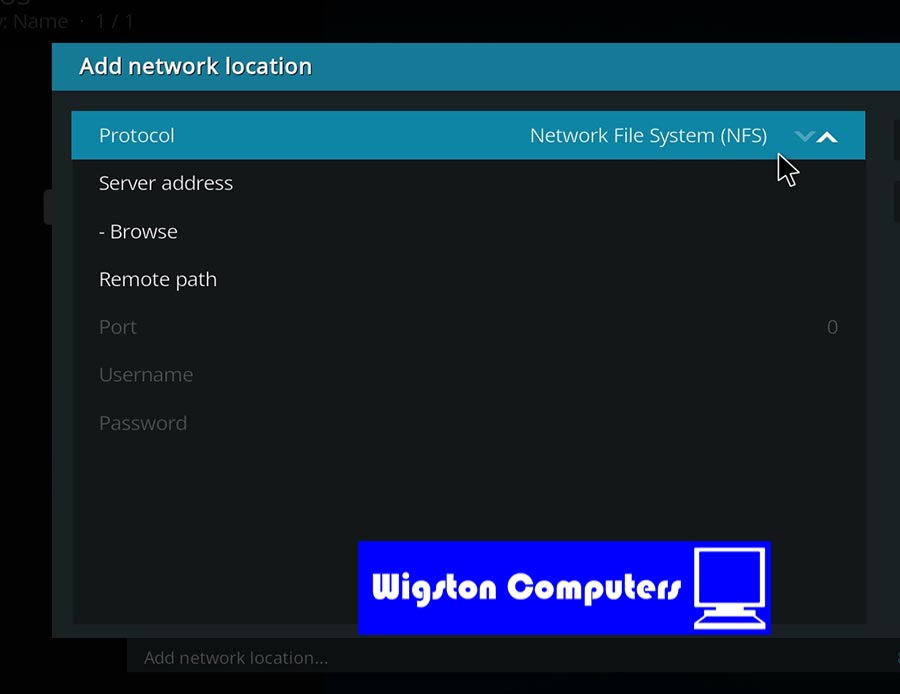
For me, this is 192.168.1.193. You can find yours by logging into your router.

Now if you press the back button and then “Browse” you will see a new option. For me, it’s “nfs://192.168.1.193/” and if you select this you will be able to browse to the folder you want.

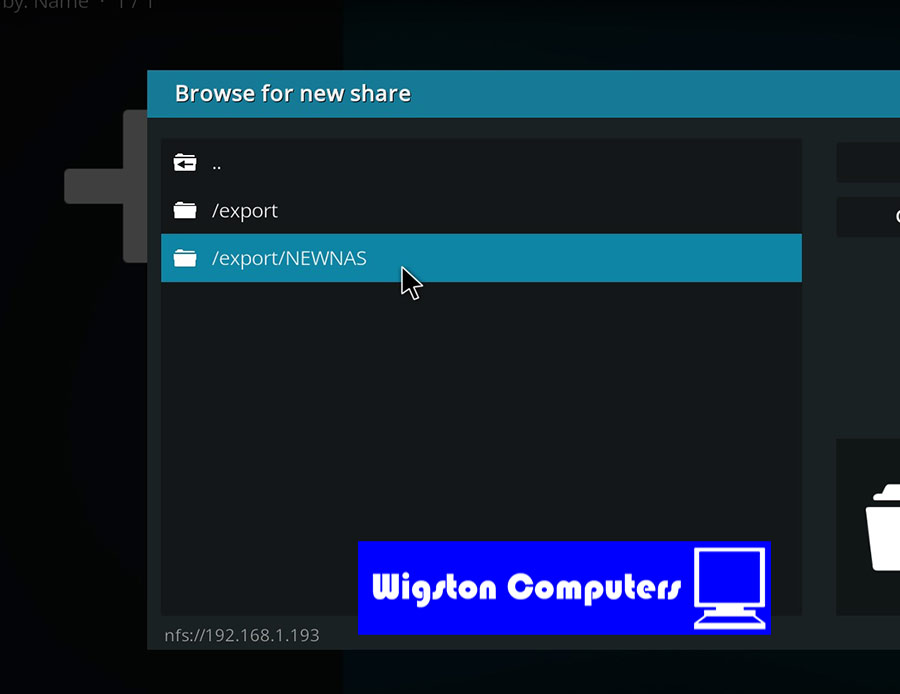
Click on the blue “Add” button.

Now you can select “Network Drive” and go to the folder you want.
How to connect Kodi to a network drive – Final thoughts
The network drive centralises all your files, so not only are they accessible from Kodi but they are accessible from other devices on your network.
There are also many other advantages of using a network drive that I’ve covered here. It’s a useful read if you are considering getting a network drive. You can easily build your own by following my Build a Network drive guide. When I say build your own it’s more a case of plunging things together, installing software and setting it up.
Once you’ve got your Kodi reading files from your network you won’t ever have to go back to plugging and unplugging drives again.
Finally, with a network drive, you can build a music streamer like the Volumio one. Then connect the Volumio streamer to the network drive and store your whole music collection. Then you have it all available at the touch of a button.
If you choose to do this have a read of my articles on audio file conversion and splitting Whole FLAC albums into individual tracks.